Overview
The discount feature on Mayar allows sellers to offer price reductions on their products or services, helping them attract more customers and increase sales. With this feature, sellers can easily set a percentage or fixed amount discount on specific items or entire product categories. Discounts can be set for a specific time period, giving you flexibility to run seasonal promotions or special event sales. Additionally, sellers can target specific customer segments with exclusive discount codes, helping build customer loyalty and encouraging repeat purchases. This feature is designed to help sellers stay competitive in the market, increase product visibility, and drive higher sales volume.How to Create a Discount?
Follow these simple steps to create a discount in Mayar:1
Access the Menu
First, click on the “CREATE” dropdown menu located in the top-right corner, next to the “Products” menu.
2
Select Discount Option
Then, select “Discount” from the dropdown options.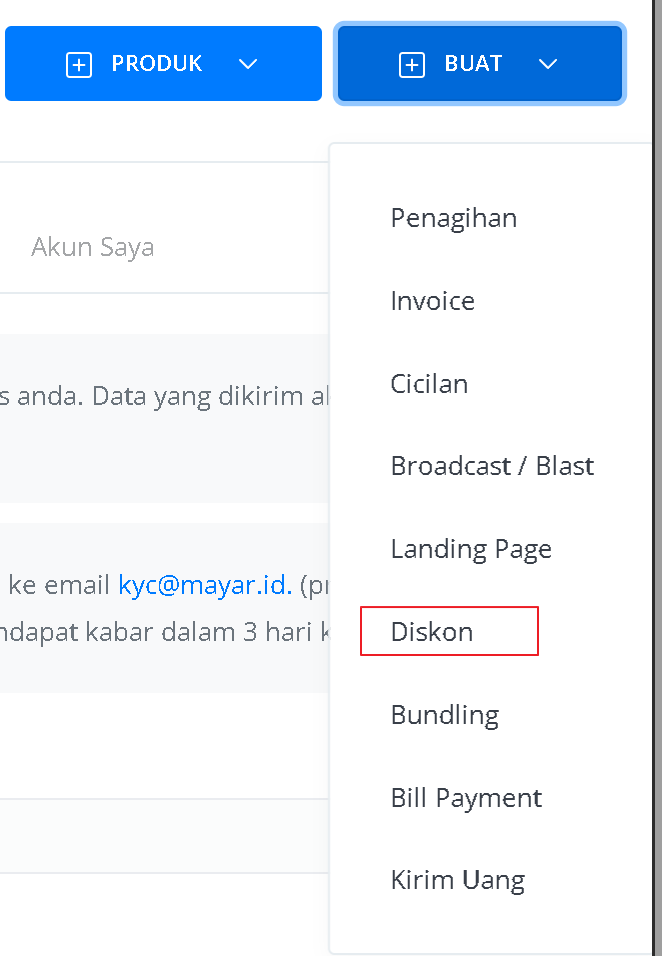
3
Fill Out the Discount Form
You will see the “Create Discount” form. Fill in the required details, including:
4
View Discount Detail Page
Once you complete the form, you’ll be redirected to the Discount Details page. Here, you’ll see the complete discount information, for example: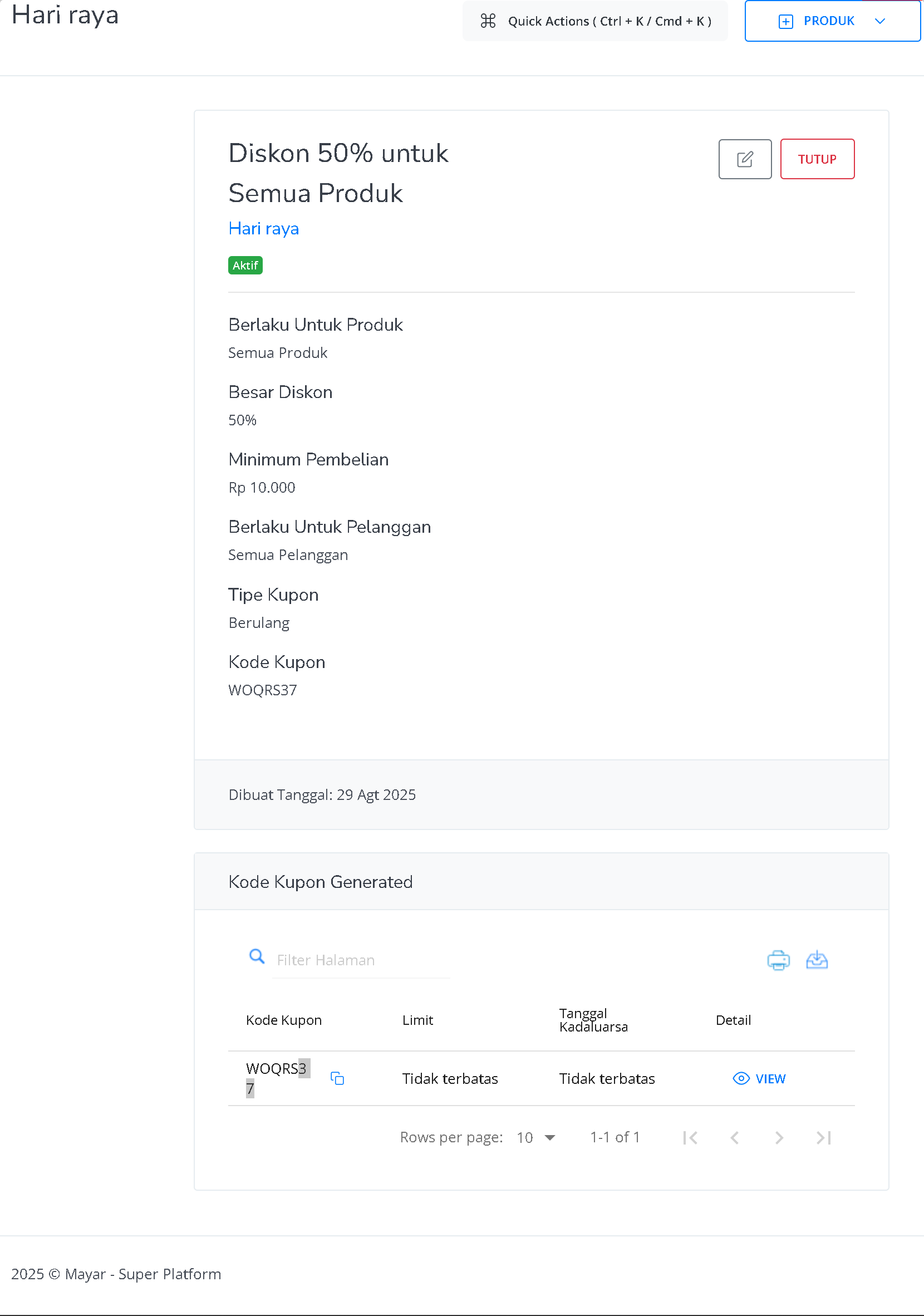
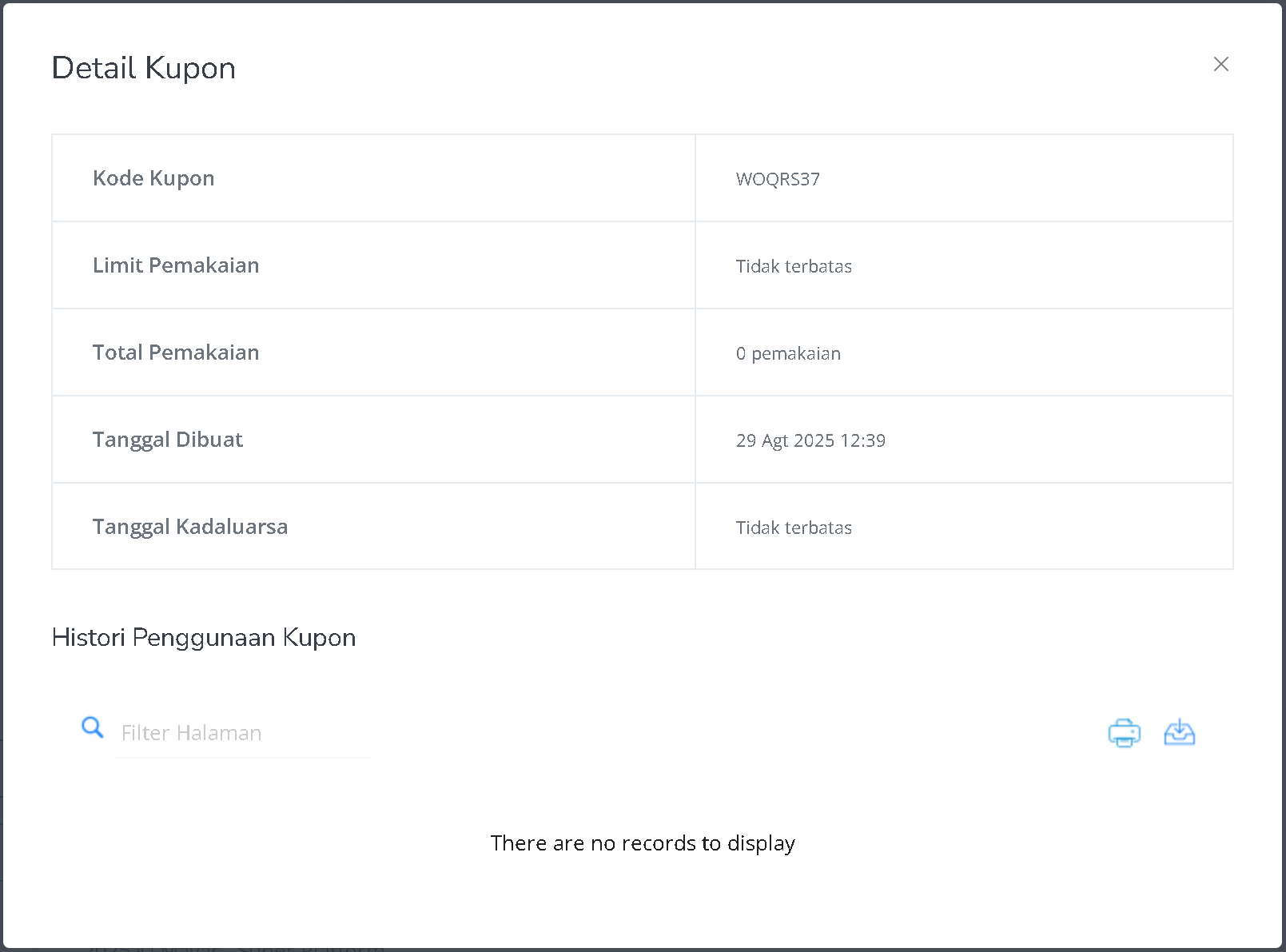
On the Coupon Details page, you can also see:
5
Finish Creating Discount
Once all steps are completed, your discount is ready to use. Congratulations, you’ve successfully created a Discount Code in Mayar!
How to Use Auto-Apply Discount Codes during Checkout
The Auto-Apply Discount Code feature in Mayar allows discounts to be applied automatically at checkout, without customers needing to enter a code manually. This makes shopping easier, improves customer experience, and reduces errors when entering codes. Eligible discounts will automatically apply to relevant products during checkout. Here’s how to set it up:1
Create a Discount
Either use an existing coupon or create a new one to auto-apply.
2
Copy the Coupon Code
Get the coupon code from your discount details page.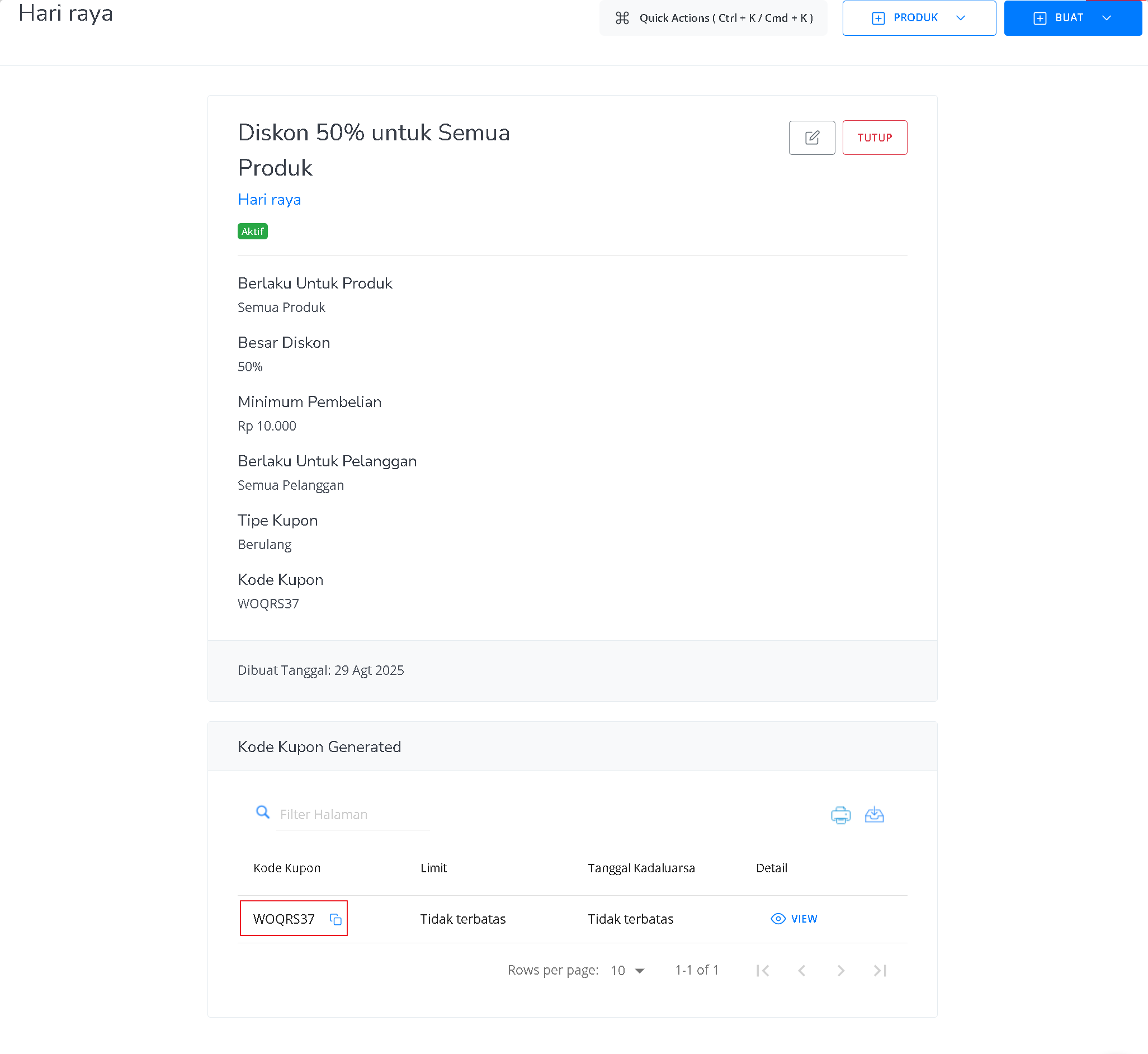
3
Edit Checkout URL
Add
?coupon=COUPONCODE at the end of your product checkout URL. Replace COUPONCODE with the actual code.4
Share the URL
Give this modified URL to your customers. Example: 
https://andiak.myr.id/pl/test-uiux-produk-digital?coupon=WOQRS375
Checkout Process
When customers visit the URL, the discount will be applied automatically—no need to type in the code. Congrats! You’ve successfully used the Auto-Apply Discount feature in Mayar.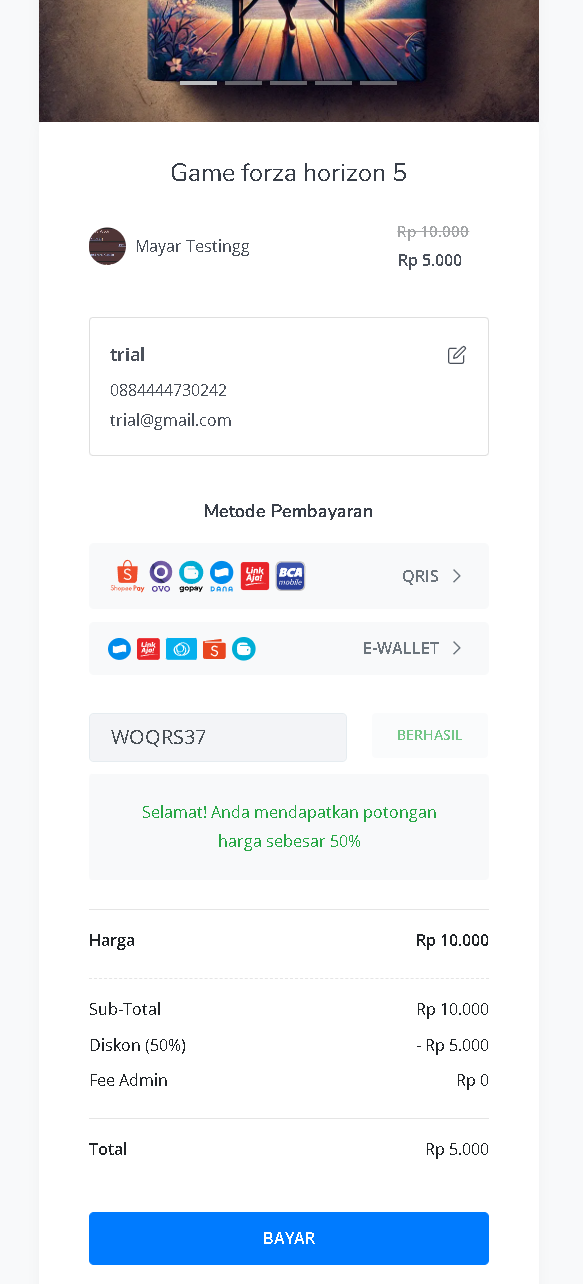
Using a Discount Coupon at Checkout
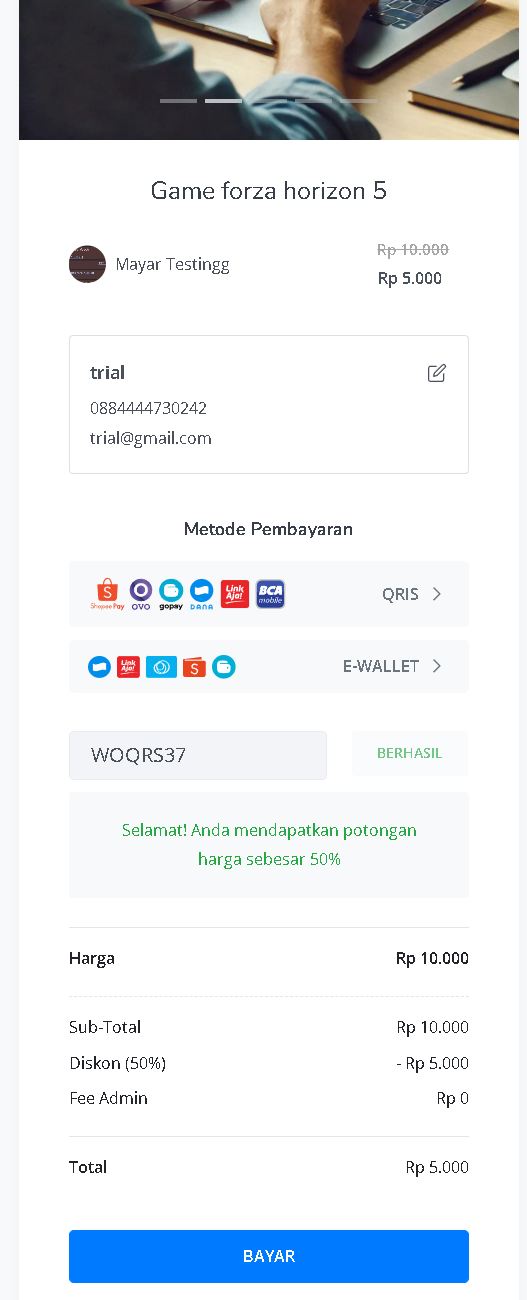
On the Mayar checkout page, customers can easily apply discount coupons. For example, if the customer enters the coupon code “WOQRS37”, the system shows a “SUCCESS” status, meaning the discount has been applied. * Original Price: Rp 10,000 * Discount: 50% * Final Price: Rp 5,000 The order summary clearly shows the applied discount, ensuring transparency and a smooth checkout experience for customers.