Overview
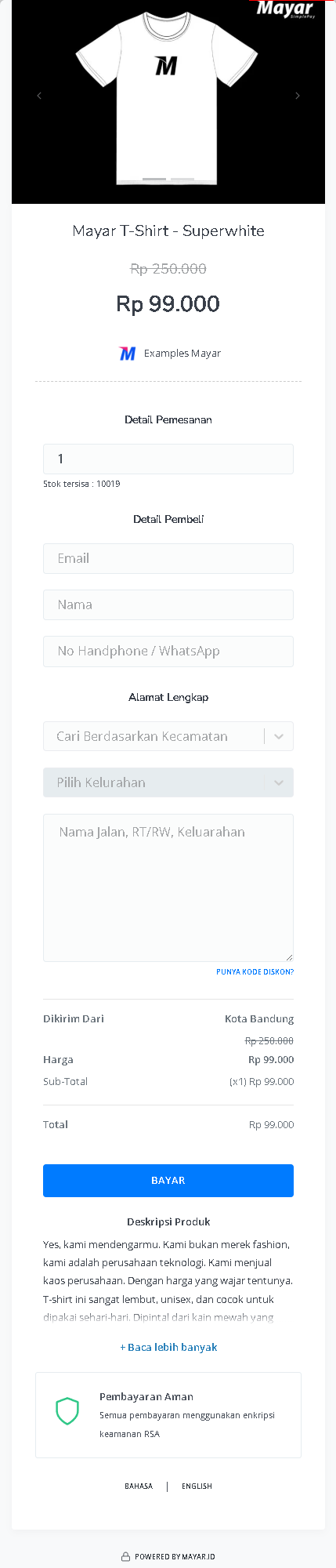
The Mayar Physical Product platform offers a comprehensive overview of managing physical products, enabling businesses to accept payments for various items with ease and efficiency. Through the intuitive Mayar Web Apps, users can create and manage physical product listings tailored to their specific inventory needs. This extensive documentation provides step-by-step instructions on how to create and customize payment links via the Mayar Dashboard, ensuring a smooth and secure transaction process for both sellers and customers. By leveraging these tools, businesses can enhance their sales operations and improve customer satisfaction.Navigate to Physical Product
1
Log in to your Mayar Dashboard
Make sure you are logged into your account and on the main Dashboard Page. This is where you will start with the Physical Product.
2
From the Sidebar menu, click on Physical Product
On the Dashboard page, find and click Physical Product Menu. This will show all of your Physical Product list that you have created before.
Create Physical Product
1
Go to Dashboard
Make sure you are logged into your Mayar account and on the main Dashboard page.
2
Access the Product Menu
Click the “Product” button at the top right near the “Create” button. This will take you to the product menu.
3
Choose Product Type
Select the “Physical Product” option to start creating your Writing product. The “Create Physical Product” window will open.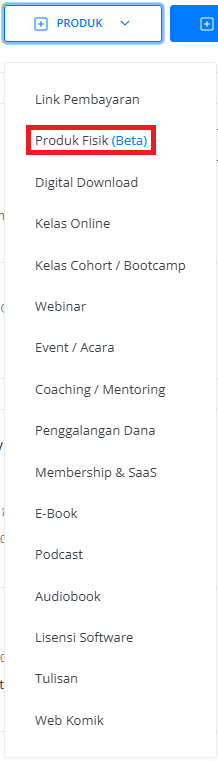
4
Fill in Product Details
Enter the following information: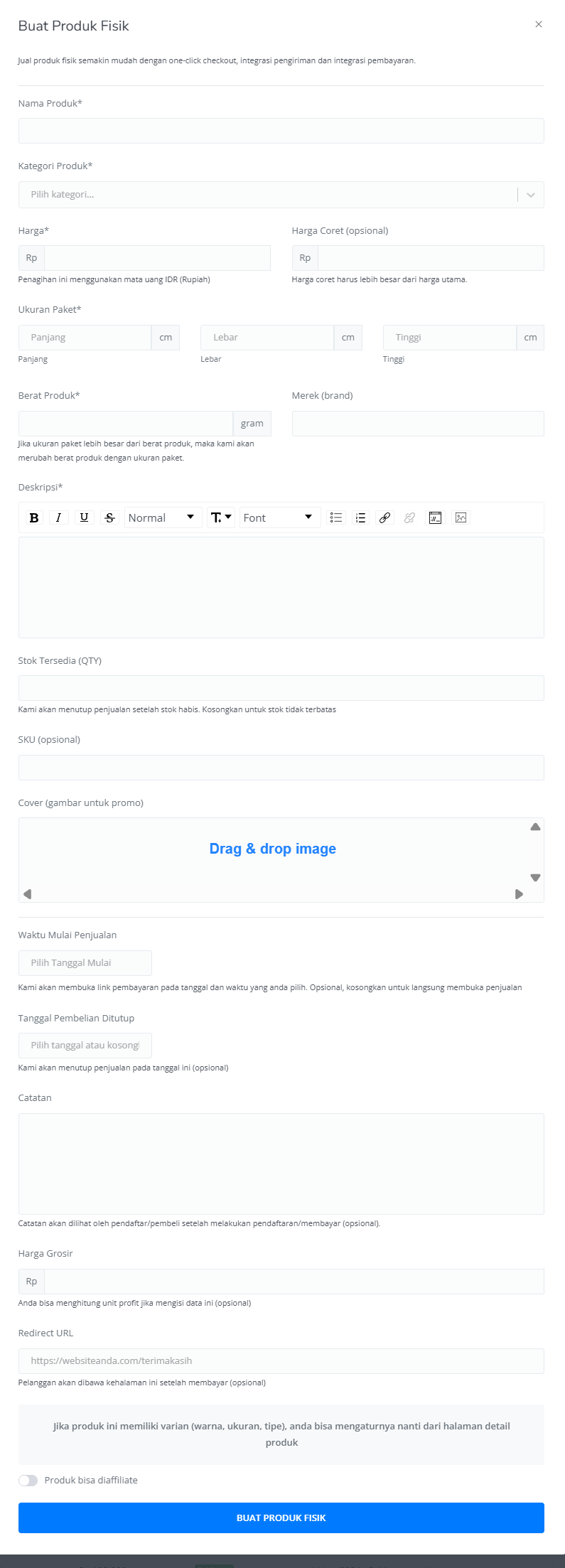
5
Review and Finish
After filling in all the information, review the product details to ensure everything is correct. On the product detail page, you will see the following: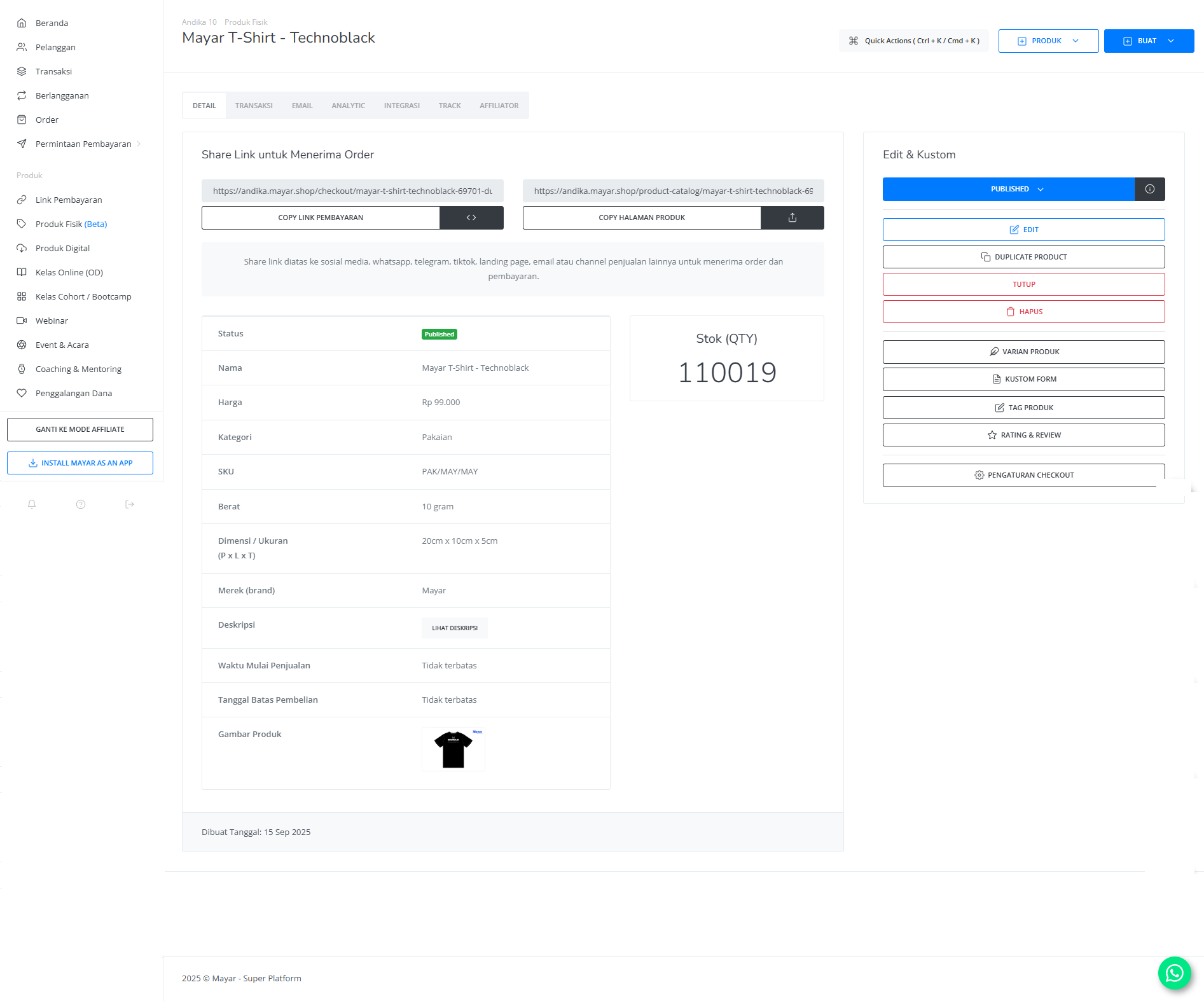
How to Access the Product Page and Checkout
1
Access Product Page
You can access the product page through the link provided in the product details.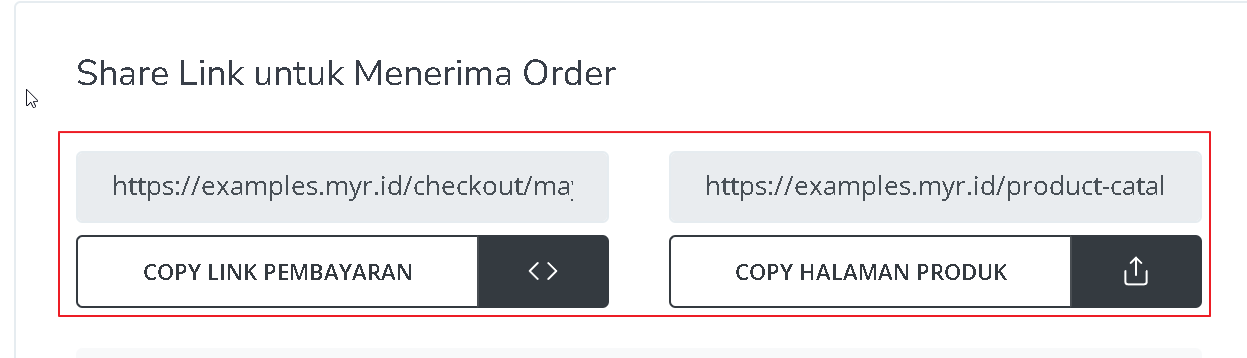
2
Copy Product Page Link
You can also access the product page by copying the product page link.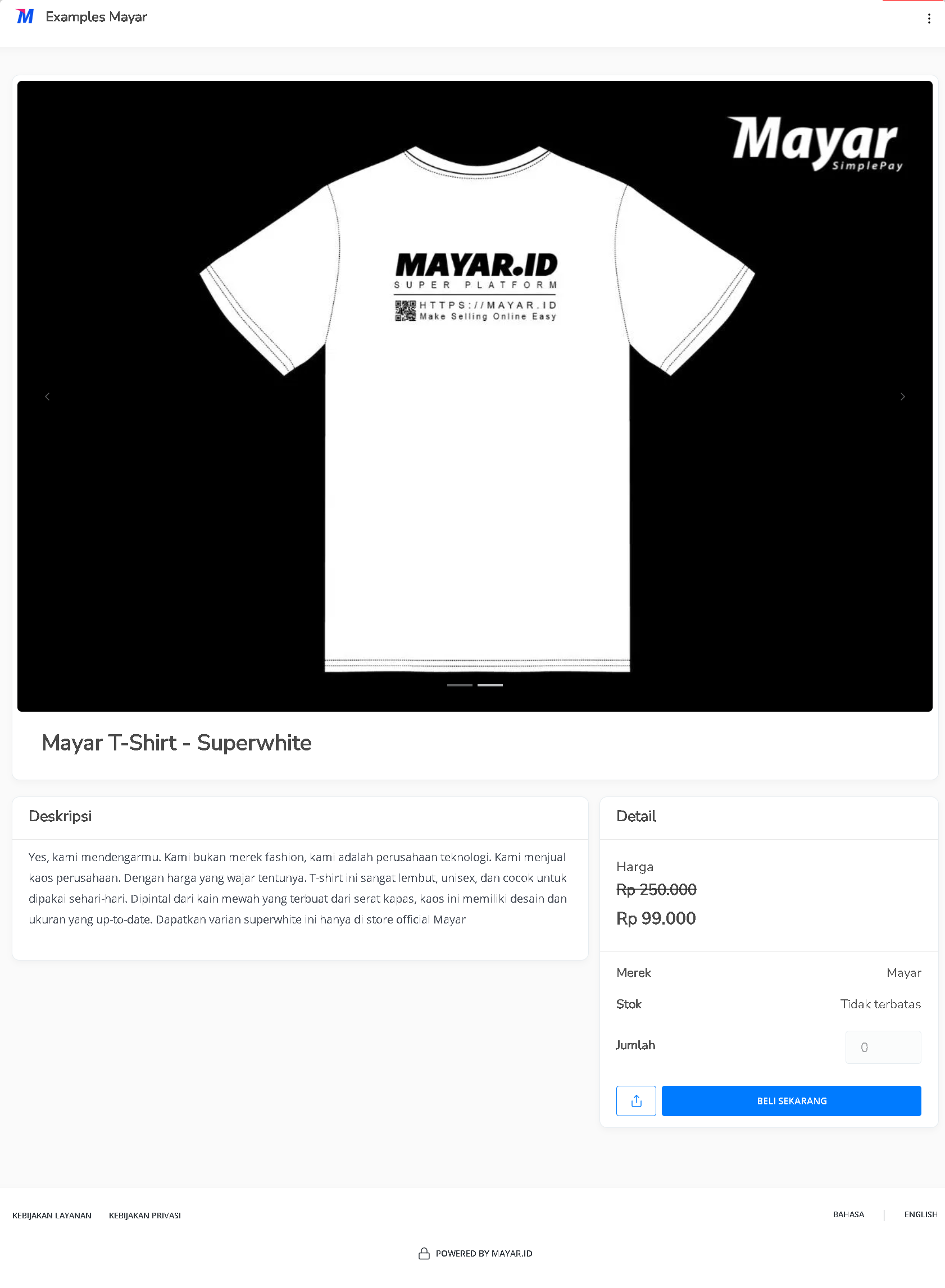
3
Access Checkout Page
To access the checkout page, you can copy the payment link.