Overview
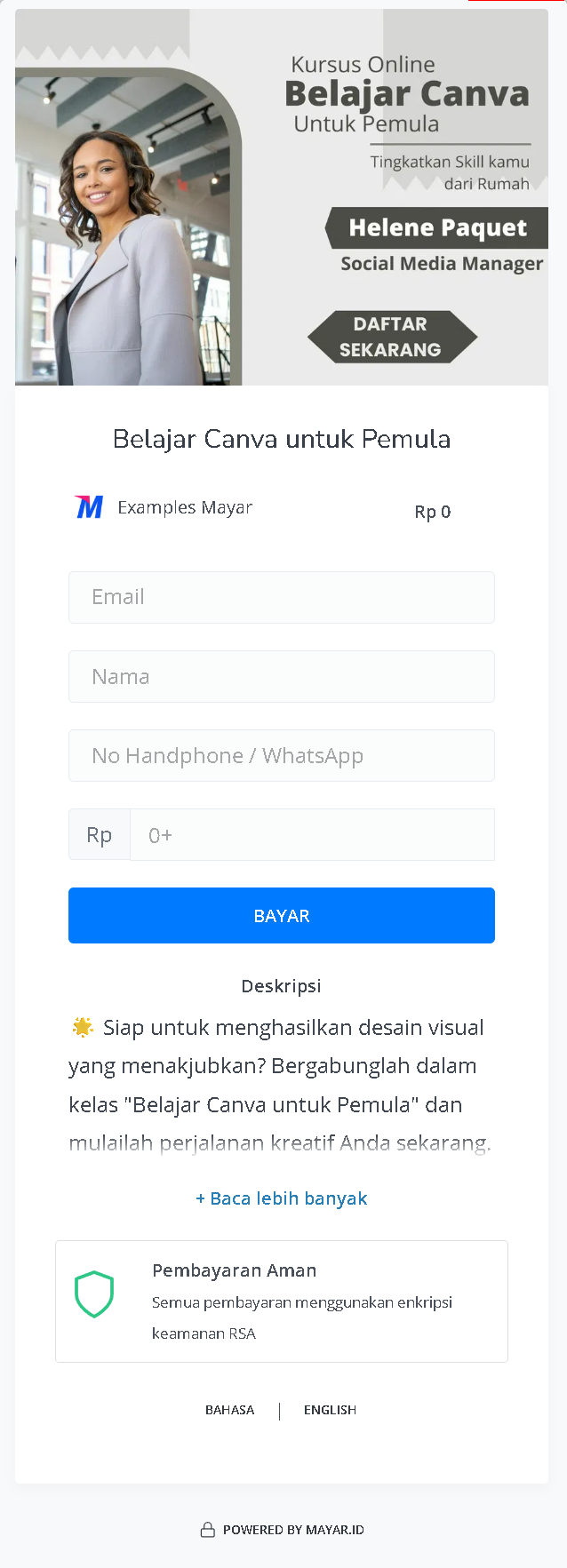
Mayar Online Course is an advanced online learning platform designed to facilitate the creation and management of structured classes and courses across a diverse range of study programs. This innovative platform empowers educators, trainers, and professionals to develop and deliver educational content that is easily accessible to a global audience. With Mayar Online Course, you can design comprehensive curricula that cater to various academic disciplines and professional fields, ensuring an enriching and engaging learning experience for all participants. The process of creating online courses is made seamless through the use of the Mayar Web Apps. These applications provide a robust and user-friendly interface that streamlines course development, enabling you to concentrate on creating high-quality content. Whether you are setting up a single class or an entire educational program, Mayar Online Course provides the flexibility and tools necessary to achieve your teaching objectives. By following this guide, you will gain a thorough understanding of how to effectively utilize the payment link functionalities, ultimately enhancing your course management capabilities and providing a streamlined experience for your students.Navigate to Online Course
1
Log in to your Mayar Dashboard.
Make sure you are logged into your account and on the main Dashboard Page. This is where you will start with the Online Course.
2
From the Sidebar menu, click on Online Course.
On the Dashboard page, find and click Online Course Menu. This will display all the Online courses you have created previously.
Create Online Course
1
Go to Dashboard
Make sure you are logged into your Mayar account and on the main Dashboard page.
2
Access the Product Menu
Click the “Product” button at the top right near the “Create” button. This will take you to the product menu.
3
Choose Product Type
Select the “Online Course” option to start creating your Writing product. The “Create Online Course” window will open.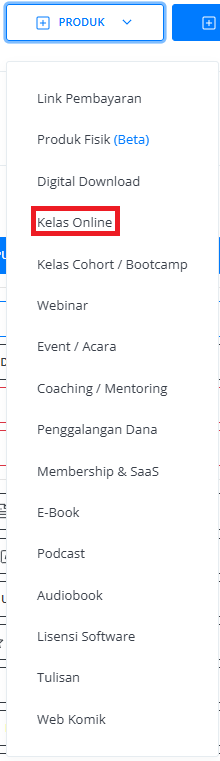
4
Fill in Product Details
Enter the following information: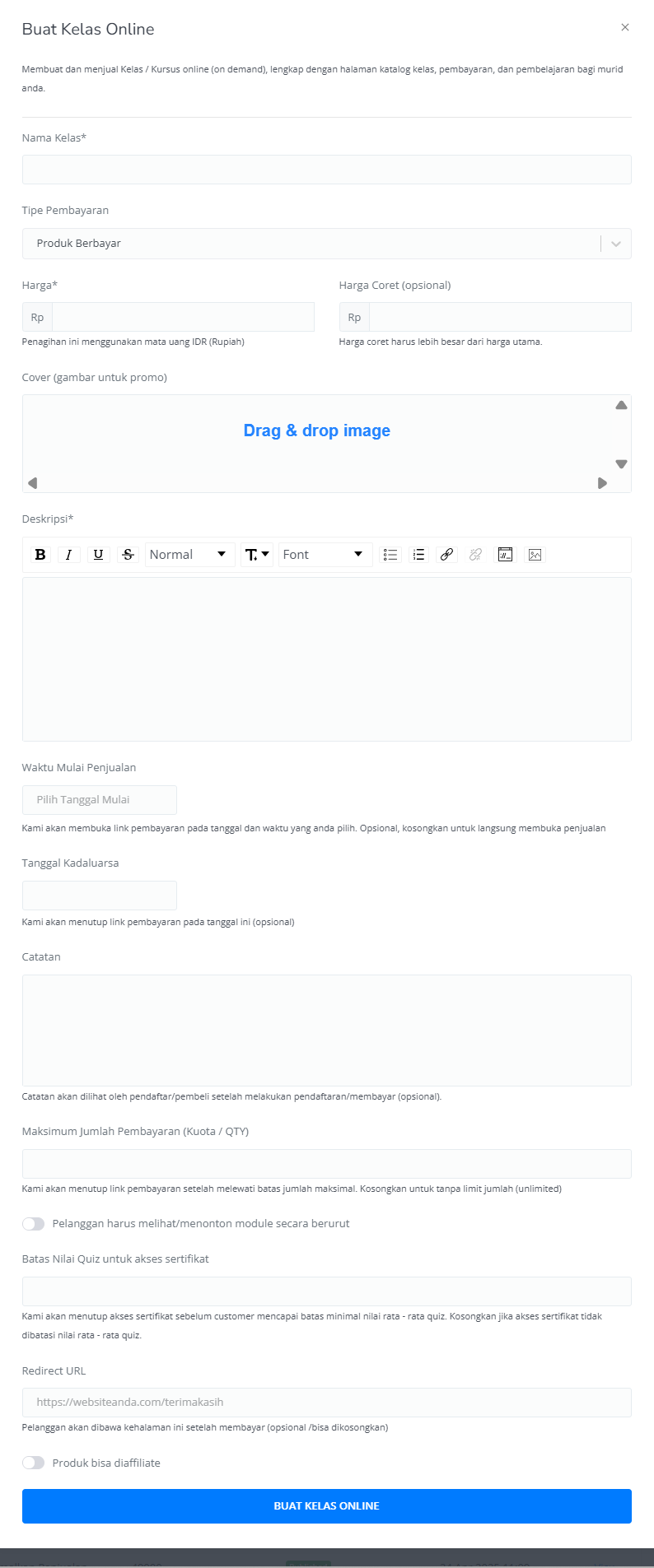
5
Review and Finish
After filling in all the information, review the product details to ensure everything is correct. On the product detail page, you will see the following: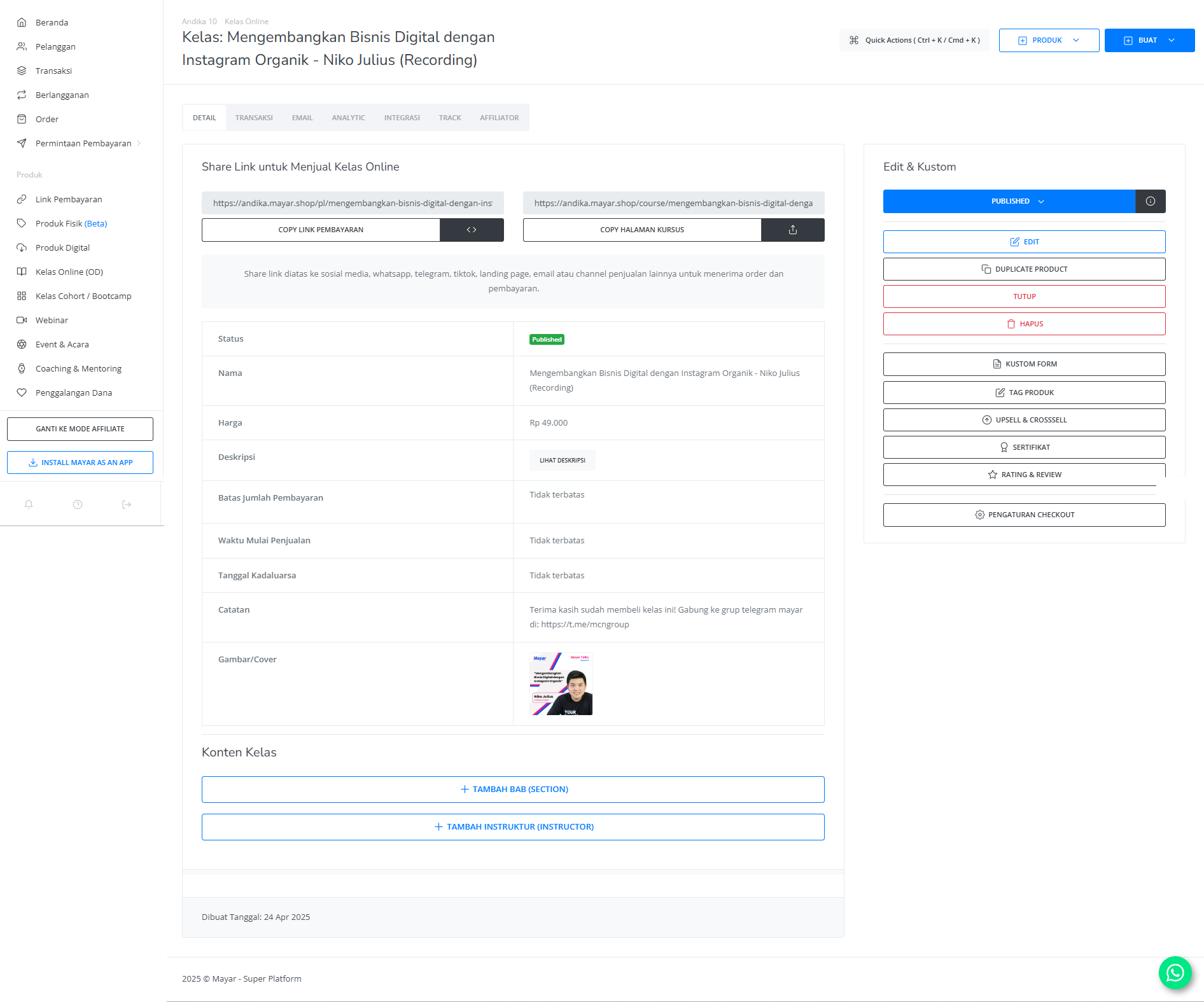
How to Access the Product Page and Checkout
1
Access Product Page
You can access the product page through the link provided in the product details.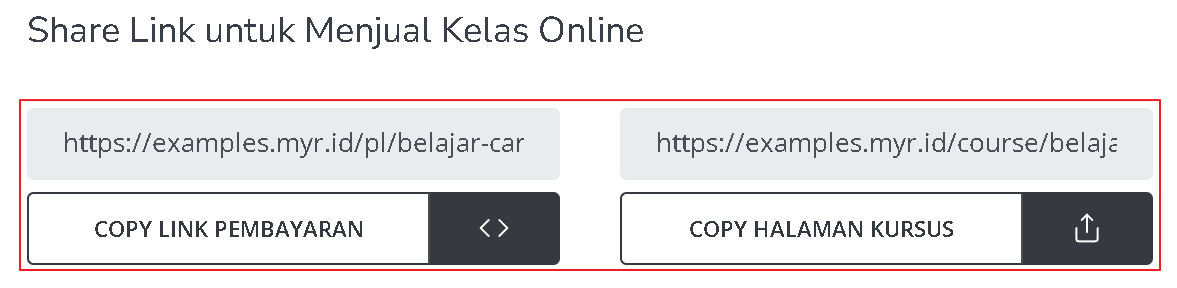
2
Copy Product Page Link
You can also access the product page by copying the product page link.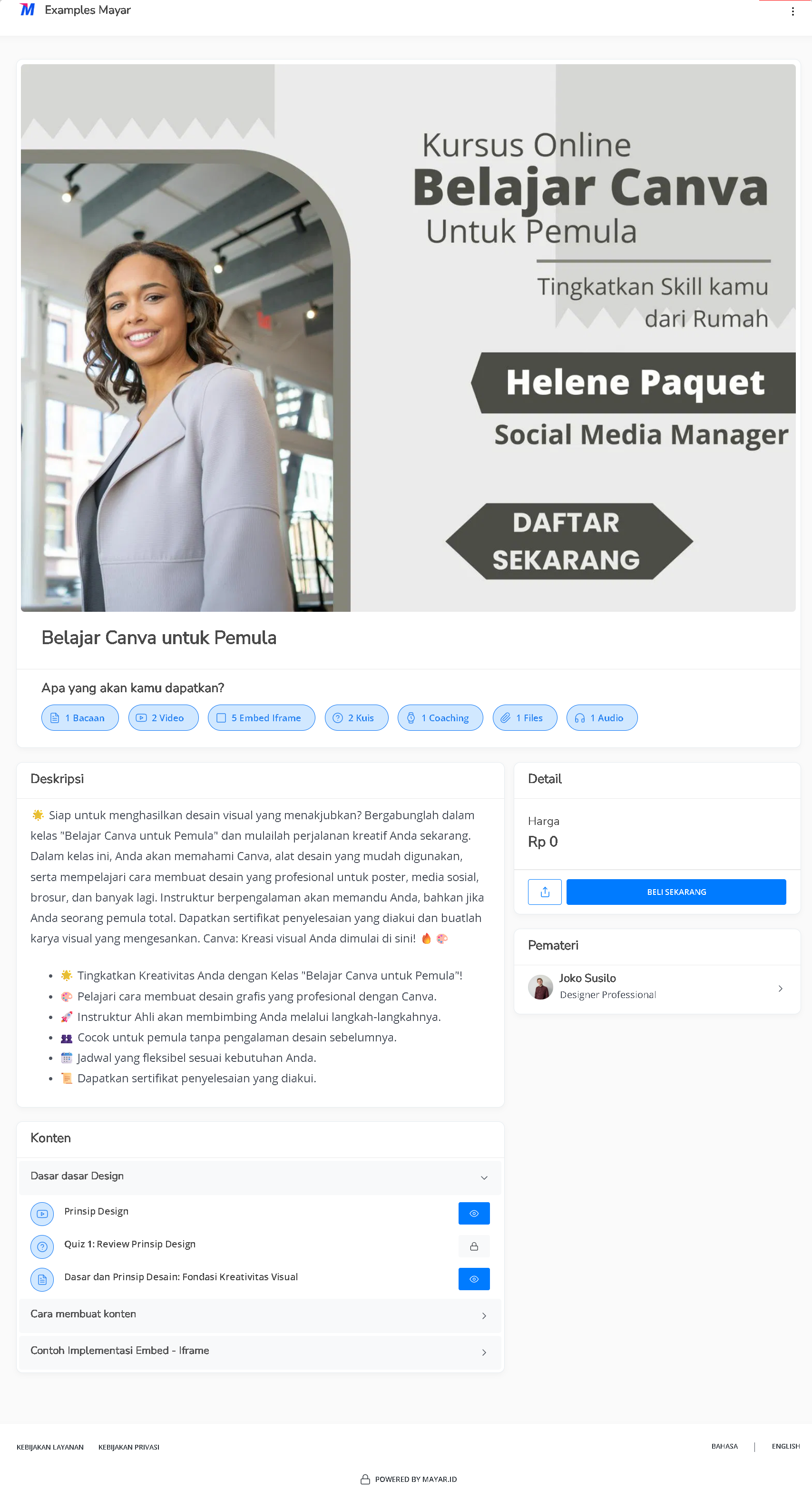
3
Access Checkout Page
To access the checkout page, you can copy the payment link.