Overview
Our Software License product offers powerful features designed to simplify the management of your software licenses. With an intuitive interface, you can easily track license usage in real time, ensure compliance with regulations, and optimize operational costs. Our automation features allow for seamless license renewal and maintenance, while the integrated reporting system provides in-depth insights into software usage across your organization. With top-level security and responsive customer support, our Software License is a trusted solution for all your license management needs.Creating a Software License Product
1
Log in to Dashboard
First, log in to your Mayar Dashboard. Make sure you are signed in to your account and on the main Dashboard page. Here, you will begin the process of creating a Software License product.
2
Access Product Menu
On the Dashboard page, find and click the “Product” button located at the top right corner, next to the “Create” button. This will take you to the product menu, where you can choose the type of product you want to create.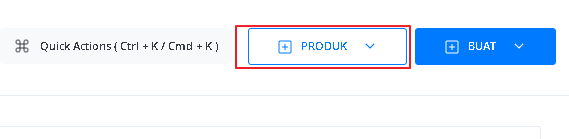
3
Select Software License Option
From the product menu, select the “Software License” option to start creating your Software License product. This will open a new window titled “Create Licensed Product”, where you will be asked to provide details about your product.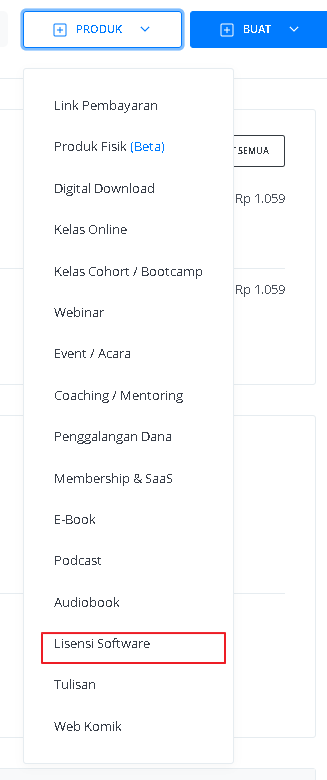
4
Fill in Product Details
In the “Create Software License” window, you need to fill in the product details as follows: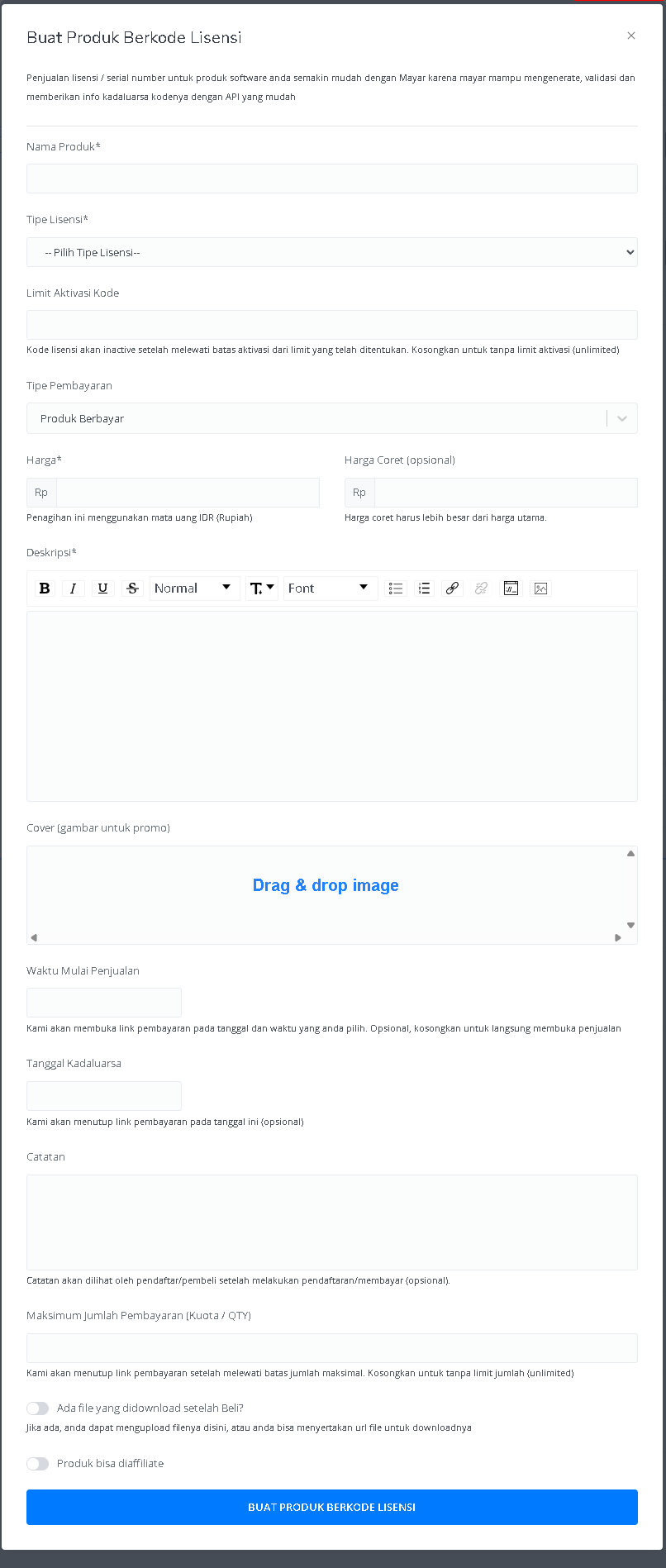
5
View Product Details Page
After filling in all the information and successfully creating the Software License product, you will be redirected to the product detail page. Here, you can see all the information as follows: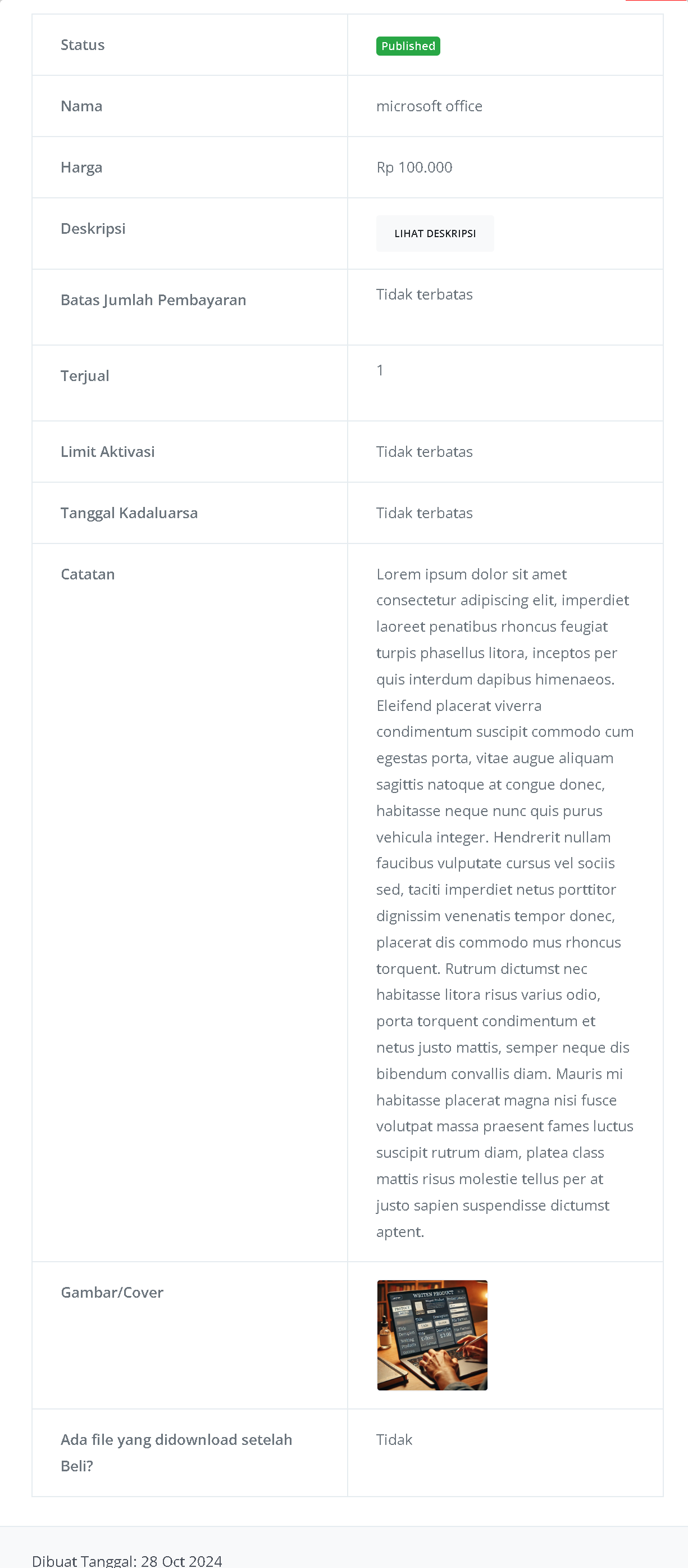
6
Congratulations!
Congratulations! You have successfully created a Software License Product in Mayar!
How to Access the Product Page and Checkout
1
Access Product Page
You can access the product page through the link provided in the product details.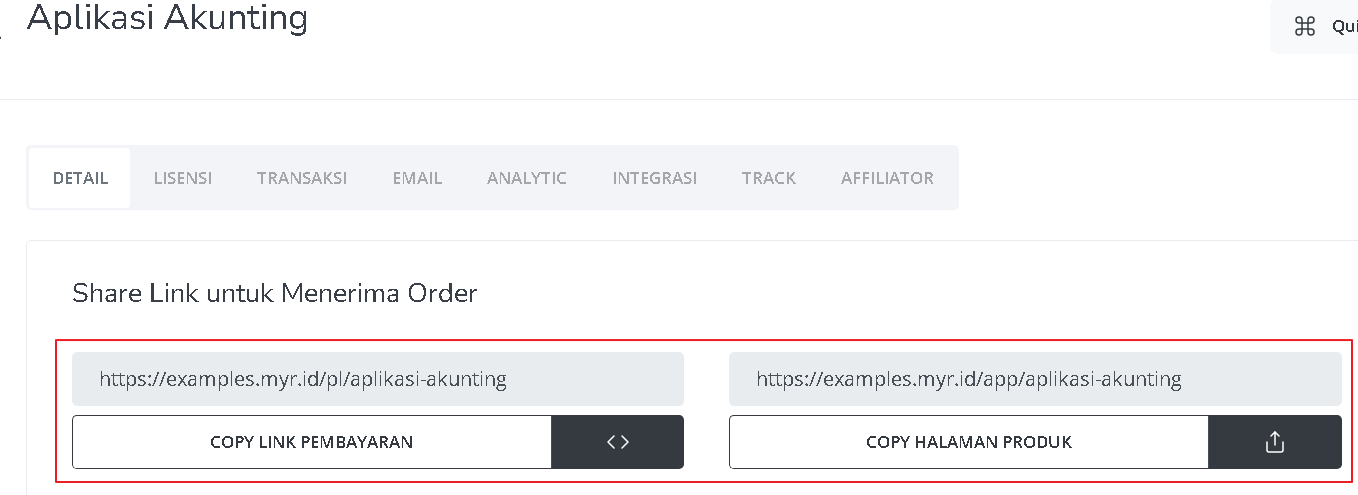
2
Copy Product Page Link
You can also access the product page by copying the product page link.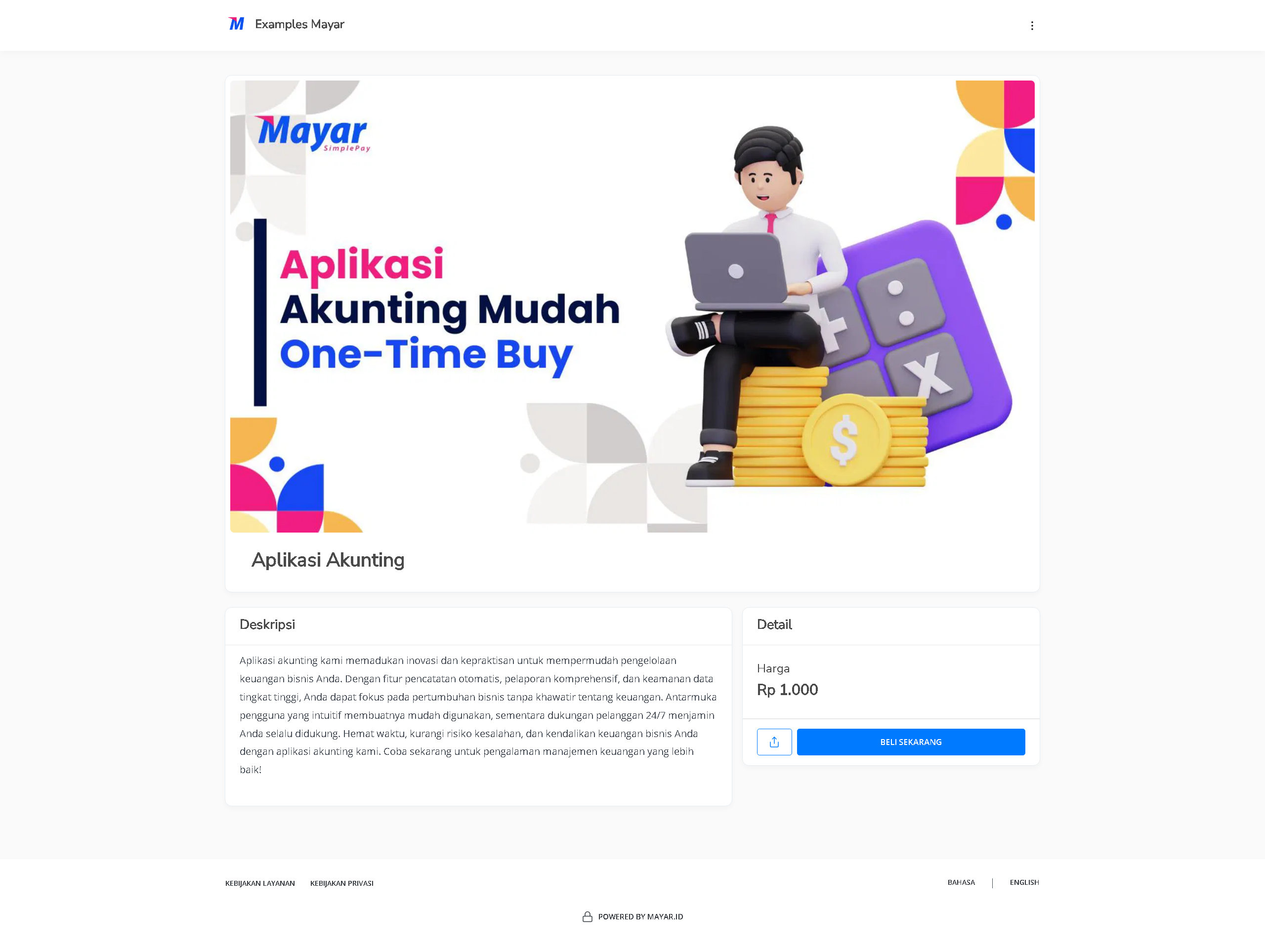
3
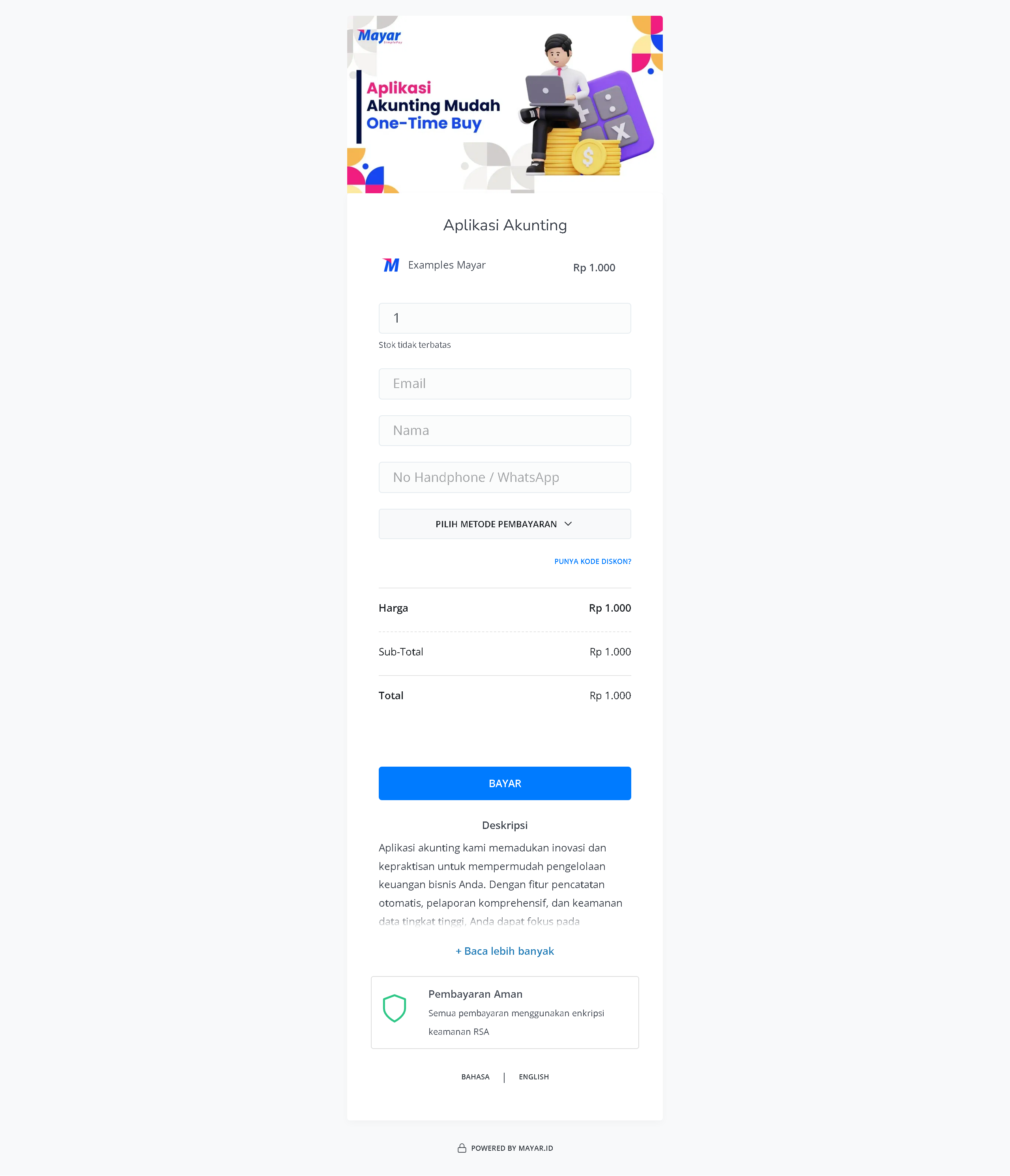
Access Checkout Page
To access the checkout page, you can copy the payment link.