
Overview
Web Comic is a digital platform that allows users to read comics online through their devices, such as computers, tablets, or smartphones. This product offers a wide variety of genres and titles that are easy and quick to access, often with extra features like automatic updates, bookmarking favorite pages, and subscription options for exclusive content. With a user-friendly interface and intuitive navigation, Web Comic provides an interactive and enjoyable reading experience for comic fans, while also helping creators reach a wider audience without geographical limits.How to Create a Web Comic Product
1
Log in to Dashboard
Make sure you’re logged in to your Mayar account and on the main Dashboard page.
2
Access Product Menu
Click the “Product” button near the “Create” button in the top right corner. This will take you to the product menu.
3
Choose Product Type
Select the “Web Comic” option to start creating a Web Comic product. The “Create Web Comic” window will appear.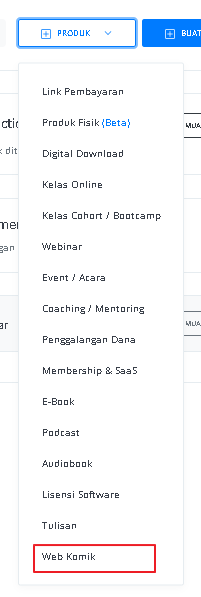
4
Fill in Product Details
Enter the following information: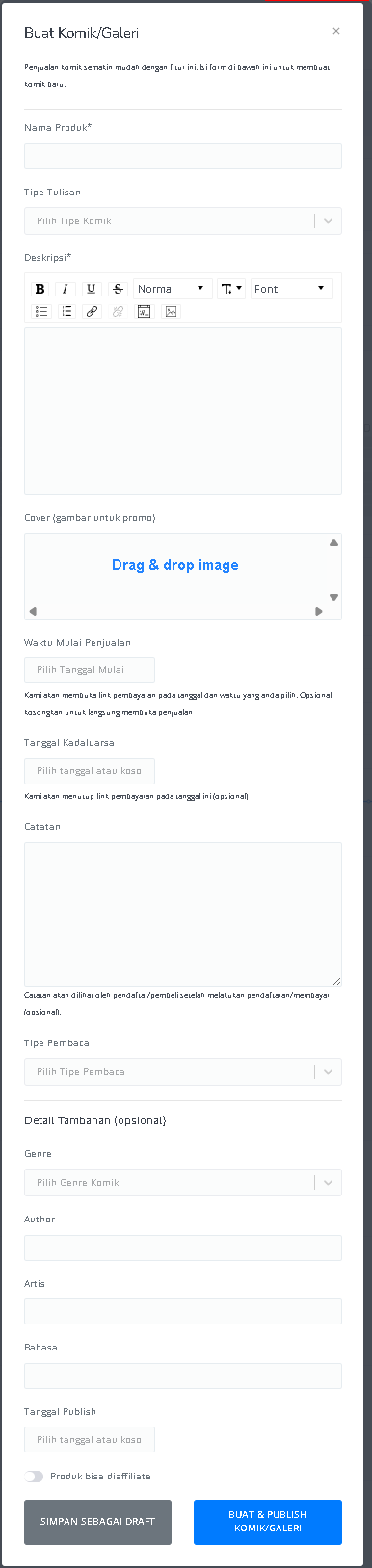
5
Create Content
For One-Shot, you can create the Web Comic content directly on the work page. For Chapter type, enter details such as Chapter Title, Cover, and Release Date before adding content per chapter on the work page. Make sure everything matches your chosen payment method and sales strategy.
6
Review and Finish
After filling in all the information, double-check the product details to make sure everything is correct. On the Web Comic detail page, you can access the following information: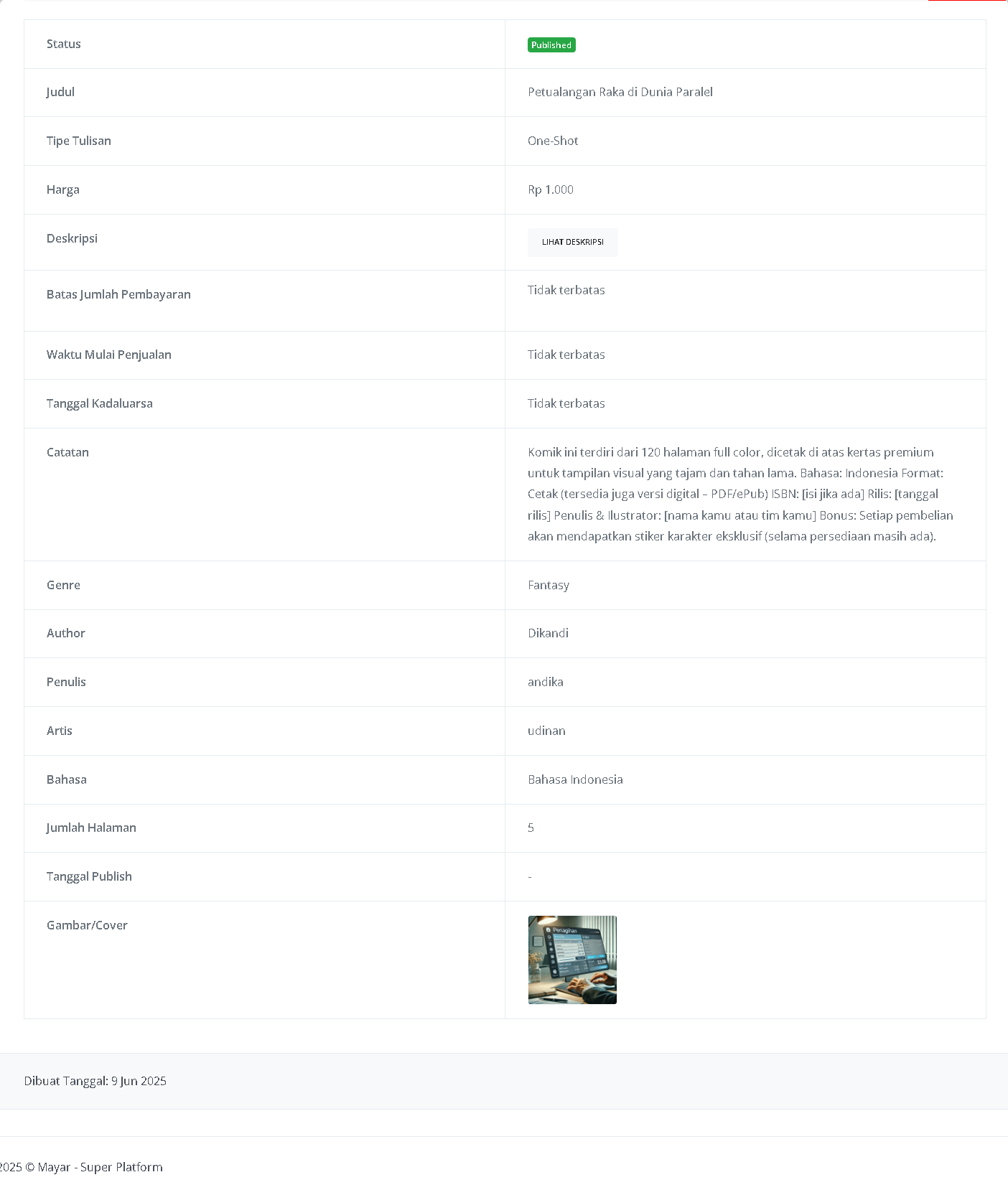
How to Access the Product Page and Checkout
1
Access Product Page
You can access the product page through the link provided in the product details.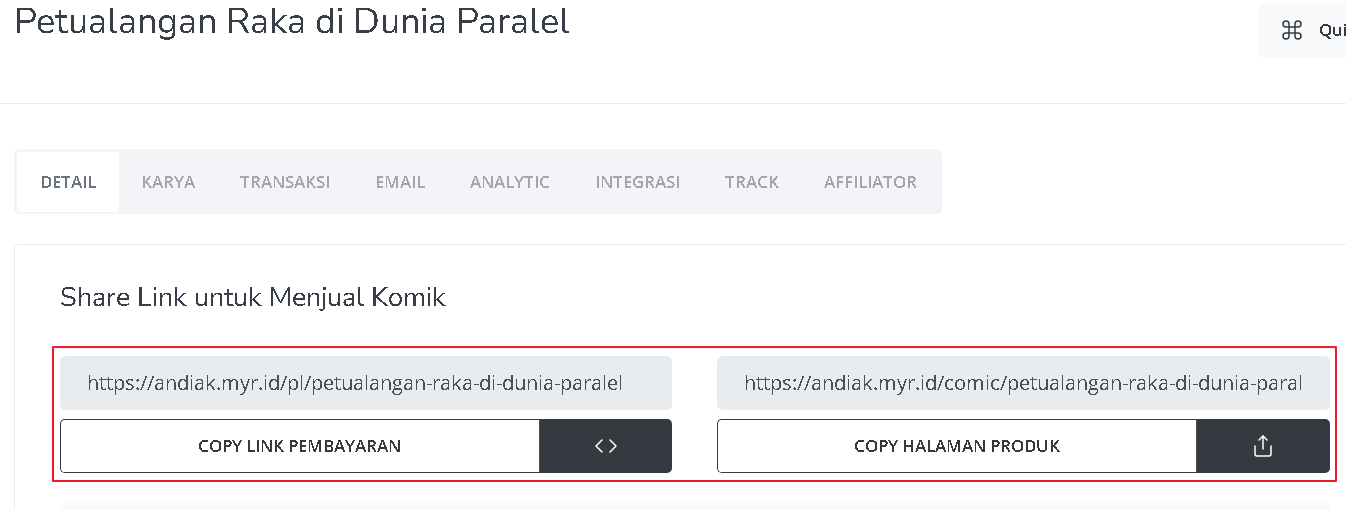
2
Copy Product Page Link
You can also access the product page by copying the product page link.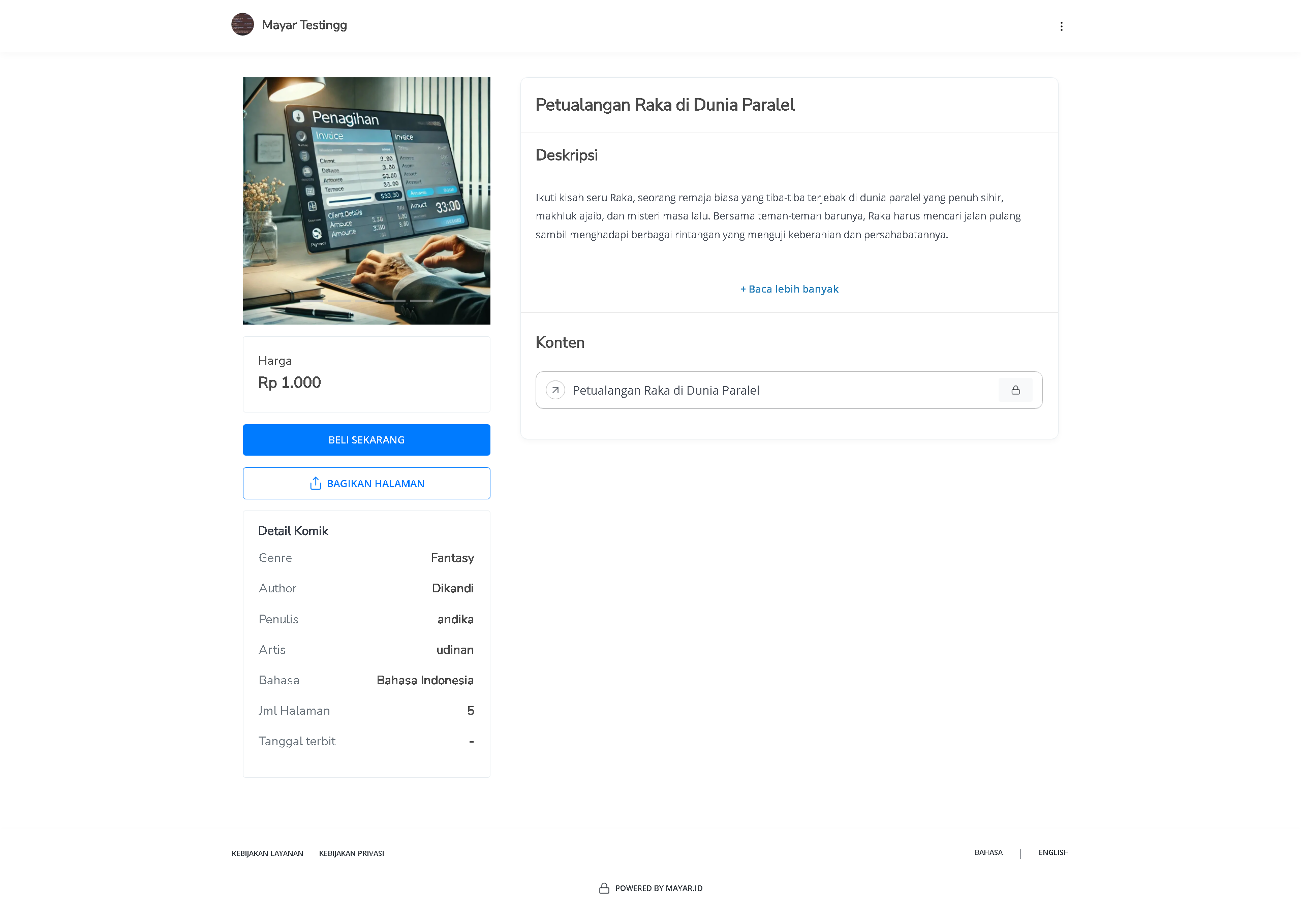
3
Access Checkout Page
To access the checkout page, you can copy the payment link.